
How to Set Up Ace Proxies in Afina Browser
Setting up Ace Proxies in Afina Browser means assigning a separate IP to an isolated profile and checking its network settings before login.
A proxy only changes the IP address. It does not separate cookies, local storage, or digital fingerprints between accounts. Afina Browser creates an isolated environment for each profile, with its own proxy, cookies, and browser settings. A practical rule is easy to remember: one work account, one profile, and one matching proxy.
This setup reduces accidental overlap between sessions, though it cannot prevent every platform check or restriction. The result also depends on the IP reputation, session stability, profile settings, and the rules of the platform you use. After entering the host and port, check the country, time zone, language, WebRTC, and DNS separately.
Which Ace Proxies product fits which task
Choose a proxy based on how long the session needs to stay active and how often the IP can change. Rotation works well for independent requests. Inside a logged-in account, however, an unexpected IP change between two actions may break the session.
| Ace Proxies product | Session type | Protocols | When to use it in Afina |
|---|---|---|---|
| Rotating Residential Proxies (GB) | Rotates on every request or at a set interval (1, 10, and 30 minutes) | HTTP, HTTPS | Public data collection, geolocation checks, and short tasks that do not require a persistent login |
| Static Residential Proxies (ISP) | Persistent IP | HTTP, HTTPS, SOCKS5 | Logged-in accounts and dashboards where the IP must remain unchanged |
| Mobile Proxies | Carrier-assigned IP with manual or scheduled rotation. | HTTP, HTTPS, SOCKS5 | Mobile workflows and checks on resources that react to the network type |
| Data Center Proxies (Dedicated Private) | Persistent dedicated datacenter IP | HTTP, HTTPS, SOCKS5 | QA and stable internal tasks that do not require a residential ASN |
A profile that stays logged in usually needs a sticky session or a static ISP proxy. If you use a rotating residential proxy, its interval should cover the entire workflow, from loading the page to authentication and saving session data. A sudden change of ASN, country, or city during the session may look like an account takeover to the website.
The concept of a static residential proxy makes the difference between static and rotating addresses easier to understand. Stability is the better choice for a first setup. Add rotation only when the task really consists of separate, unrelated requests.
What you need before setup
Before starting, make sure your Ace Proxies plan is active, Afina is installed on Windows or macOS, and the connection details are ready. Afina supports HTTP, HTTPS, and SOCKS5, but this setup requires an IPv4 proxy. IPv6 will not work here.
Prepare the following details in your Ace Proxies dashboard:
- proxy host or server address
- port
- protocol available with the selected product
- username and password, or a configured IP whitelist
- session mode: static, rotating, or sticky with the required interval
Copy these values directly from the Ace Proxies dashboard. This helps avoid mixing up the gateway address and IP, entering the wrong port, or missing part of the username.
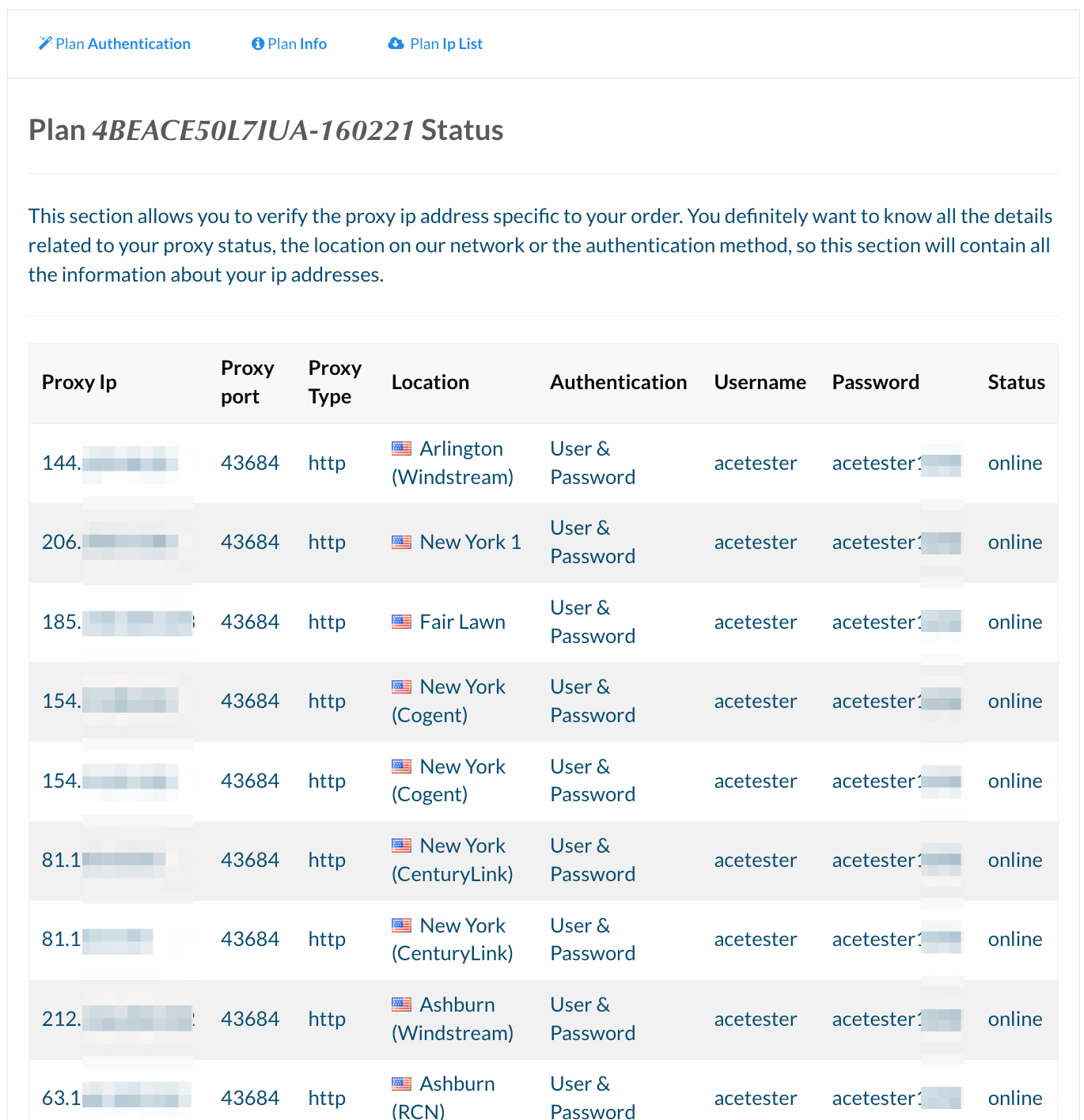
If the connection uses username and password authentication, enter both values directly in the Afina profile. For IP whitelist authentication, first add the public IP of your work device to the allowed list in Ace Proxies. You can then enter only the host and port in Afina. There is no reason to combine both methods unless the endpoint configuration specifically requires it.
Step-by-step setup in Afina
You can add a proxy while creating a profile or later through the profile editor. First decide whether you want to enter an endpoint used only by this profile or select an existing proxy from the shared list.
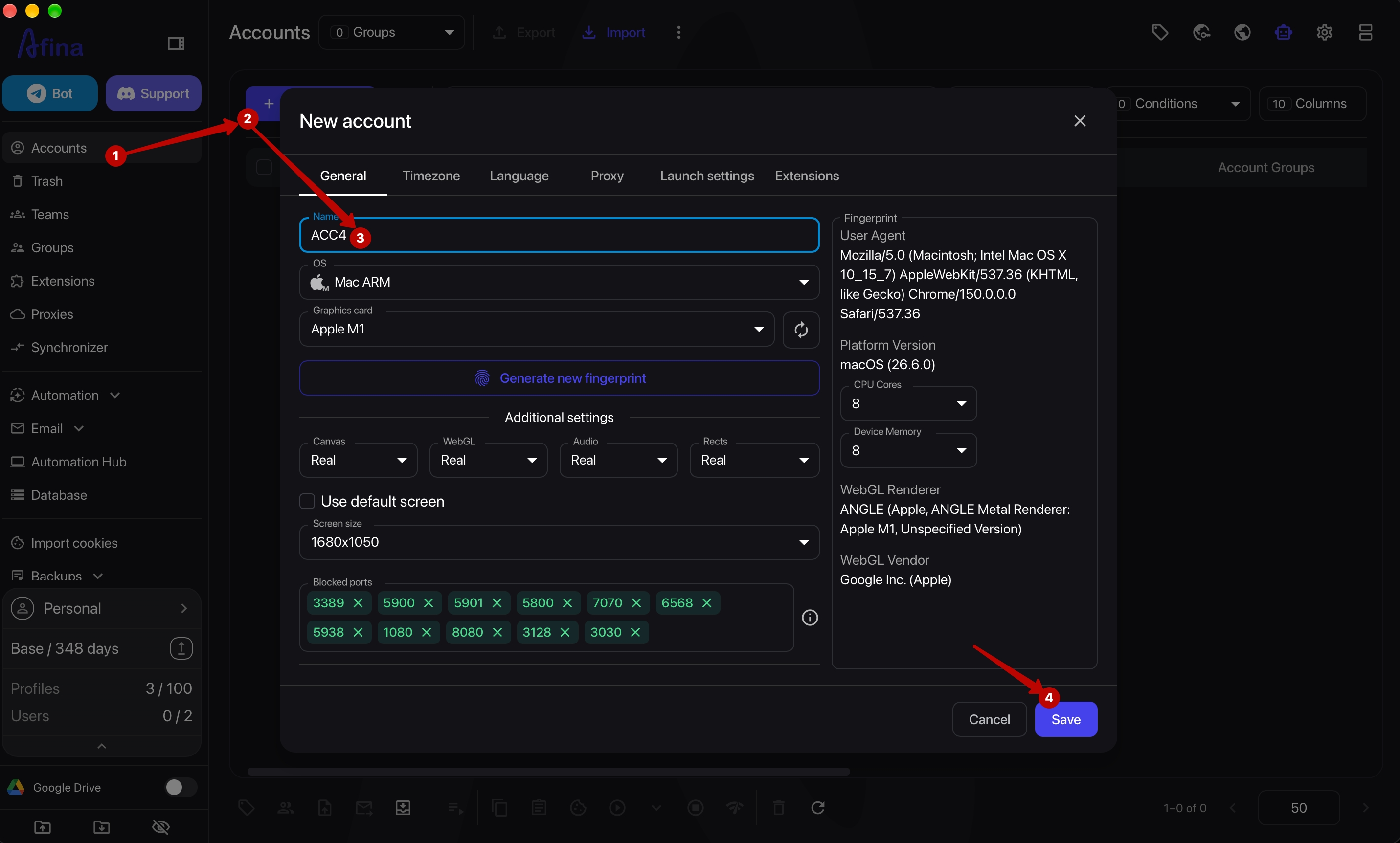
Open Accounts in the left sidebar of Afina. Click Add Account to create a profile, or open the edit window for an existing one. In the General tab, enter a name, select the operating system, and configure the digital fingerprint.
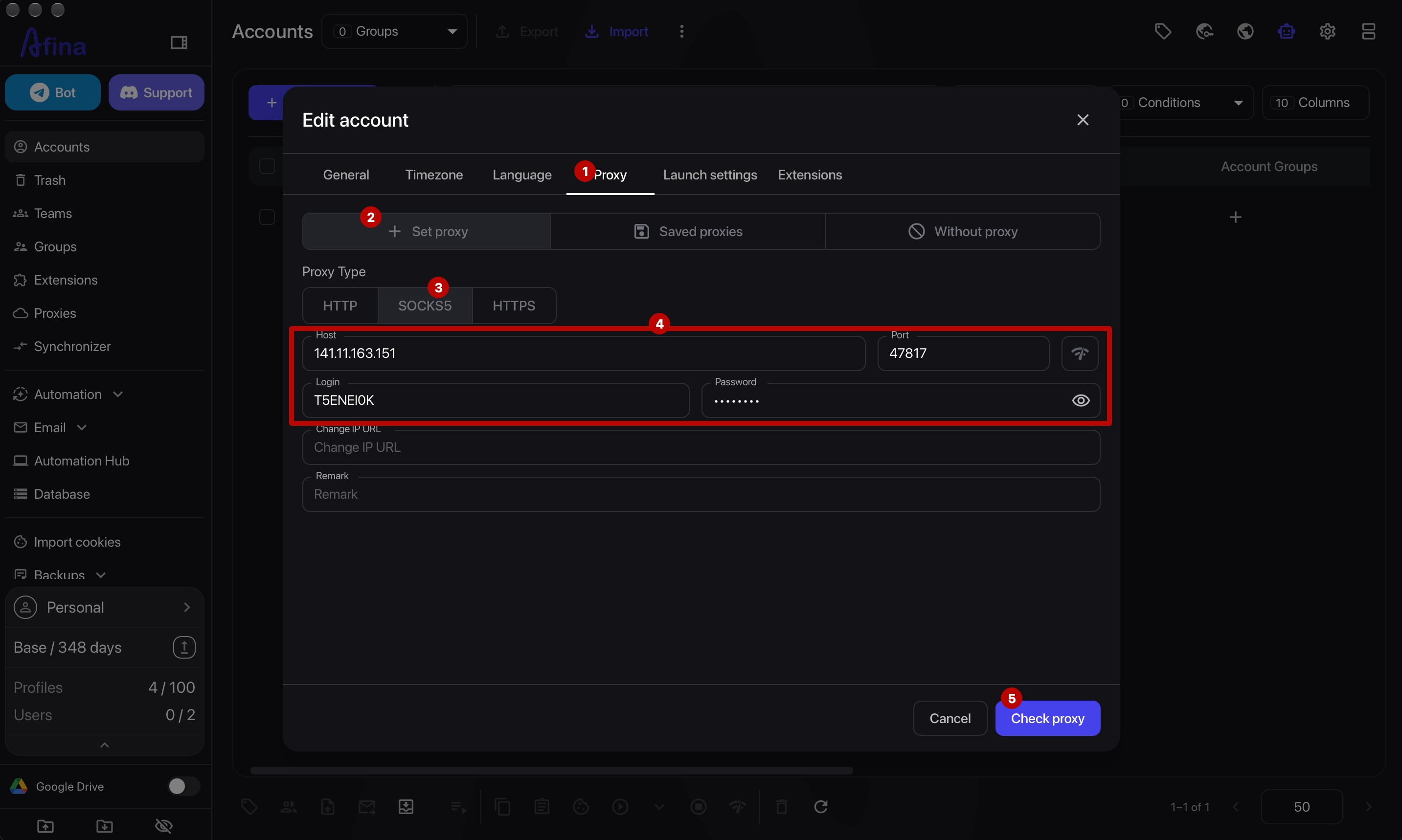
Open the Proxy tab. If this connection is only for the current profile, select Set proxy.
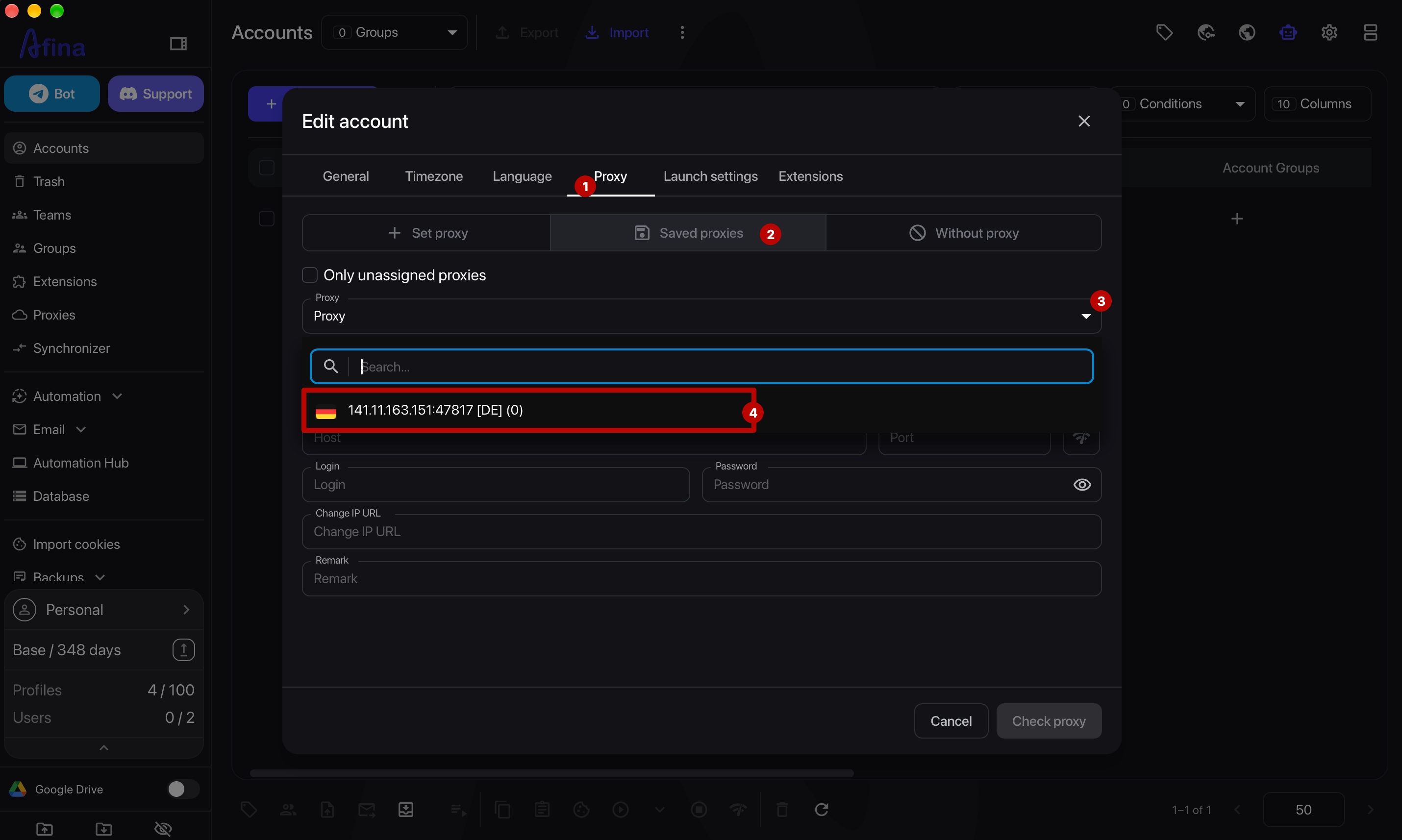
If the endpoint is already in the shared Afina list, open Saved proxies and select the required entry.
For a new connection, select HTTP, HTTPS, or SOCKS5 according to the Ace Proxies product. Enter the host and port in their respective fields. If the endpoint uses credential-based authentication, add the username and password as well. Do not paste the entire proxy string into one field: Afina expects separate host, port, login, and password values.
Click the check icon to the right of the fields. Afina should display the expected outgoing IP and country. If both are correct, save the profile with Save. The Proxy tab will retain the connection mode, protocol, address, port, credentials, and geolocation check result.
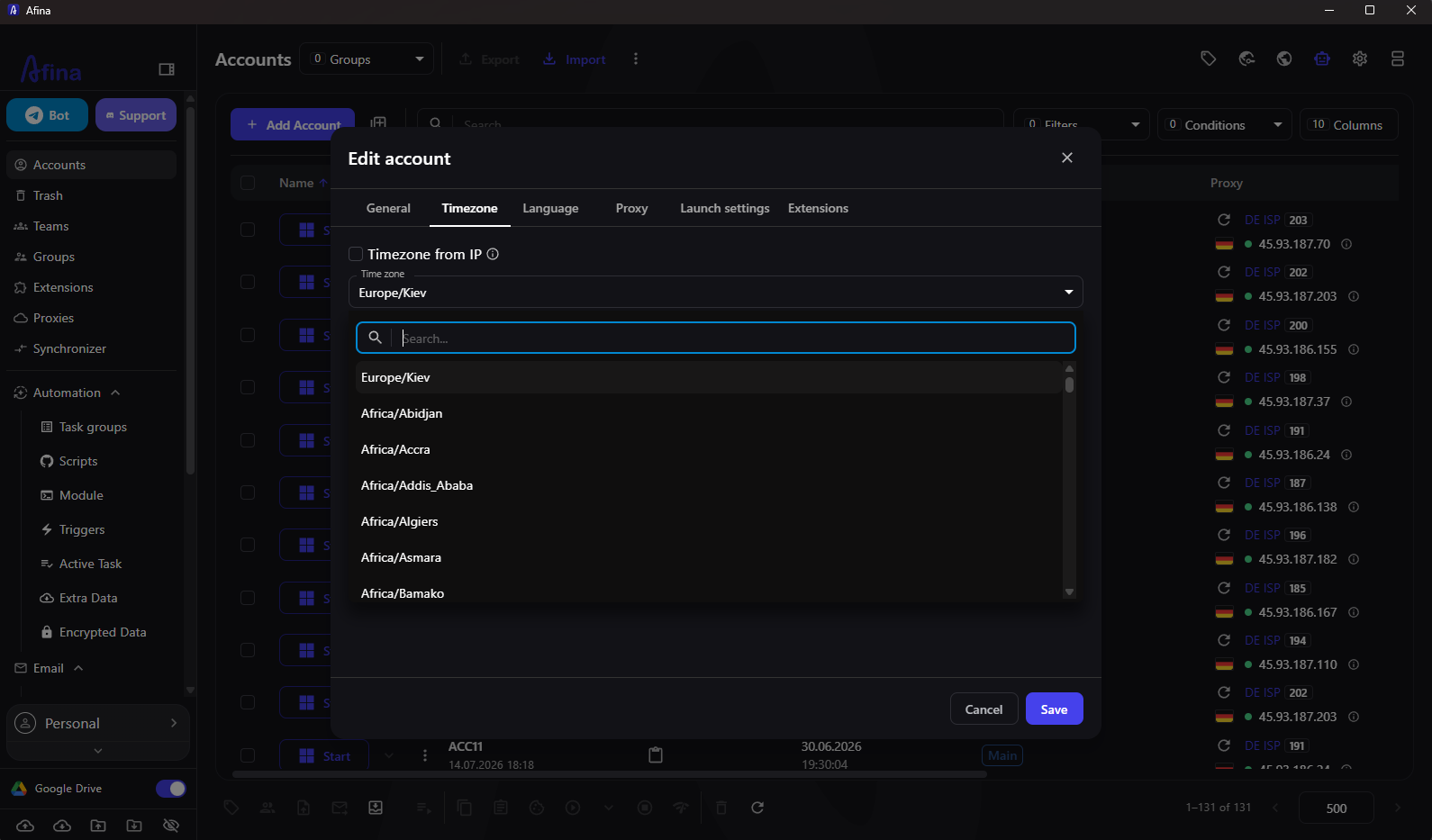
Next, open the Timezone tab. Keep Timezone from IP enabled so Afina can match the profile time zone to the proxy address automatically.
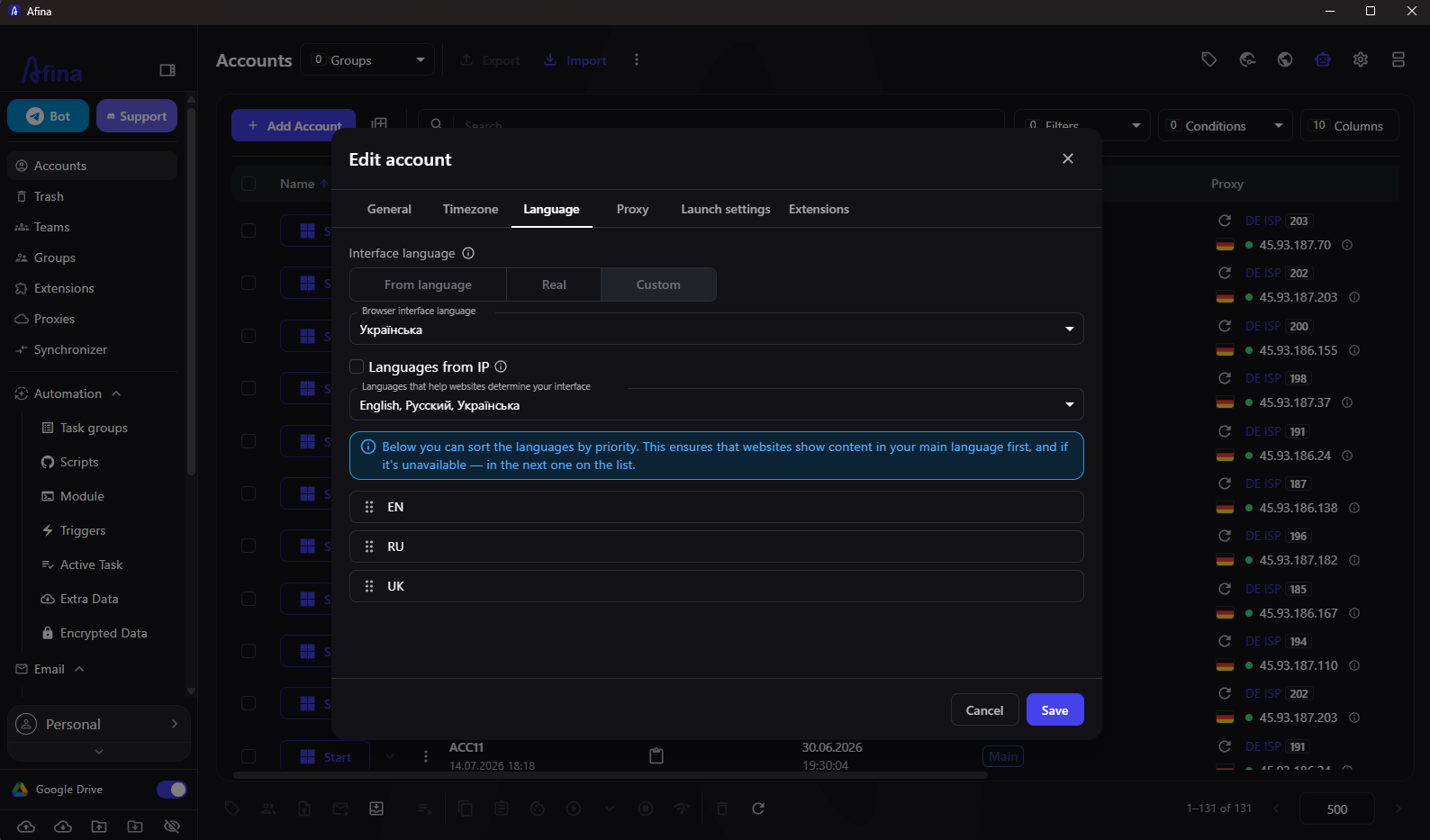
In the Language tab, keep Languages from IP enabled as well. It matches the browser's language-related HTTP headers to the proxy region. Otherwise, the profile may show an IP from one country while its language and time zone point somewhere else.
For SOCKS5 endpoints, Afina can also detect UDP support. UDP affects WebRTC, QUIC/HTTP3, and WebTransport. But a SOCKS5 label in the plan does not prove that a specific endpoint can tunnel UDP correctly. Test it before using the profile.
Rotation, sticky and IP whitelisting
Afina connects with the endpoint details issued by the proxy provider. Rotation rules are configured on the Ace Proxies side. Avoid replacing the address in the profile during an active authenticated session because a website may treat the sudden IP change as suspicious.
For short, independent tasks, you can rotate the IP on every request or at a chosen interval. Dashboards, shopping carts, and long forms need a more stable connection. Use a static or sticky session that lasts longer than the complete workflow. If Ace Proxies provides a session ID or a separate sticky address, copy the ready-made values from the dashboard without changing their format manually.
IP whitelisting is convenient when the device has a stable external address. As soon as the internet provider changes the public IP, authentication will stop working. You will need to add the new address to the whitelist. Username and password authentication is often easier for teams and devices with dynamic IPs.
Check the profile before logging in
A successful proxy status confirms that the connection works. It does not confirm that every profile setting is consistent. Before logging in, launch the profile and check the outgoing IP, country, WebRTC, DNS, browser language, and time zone.
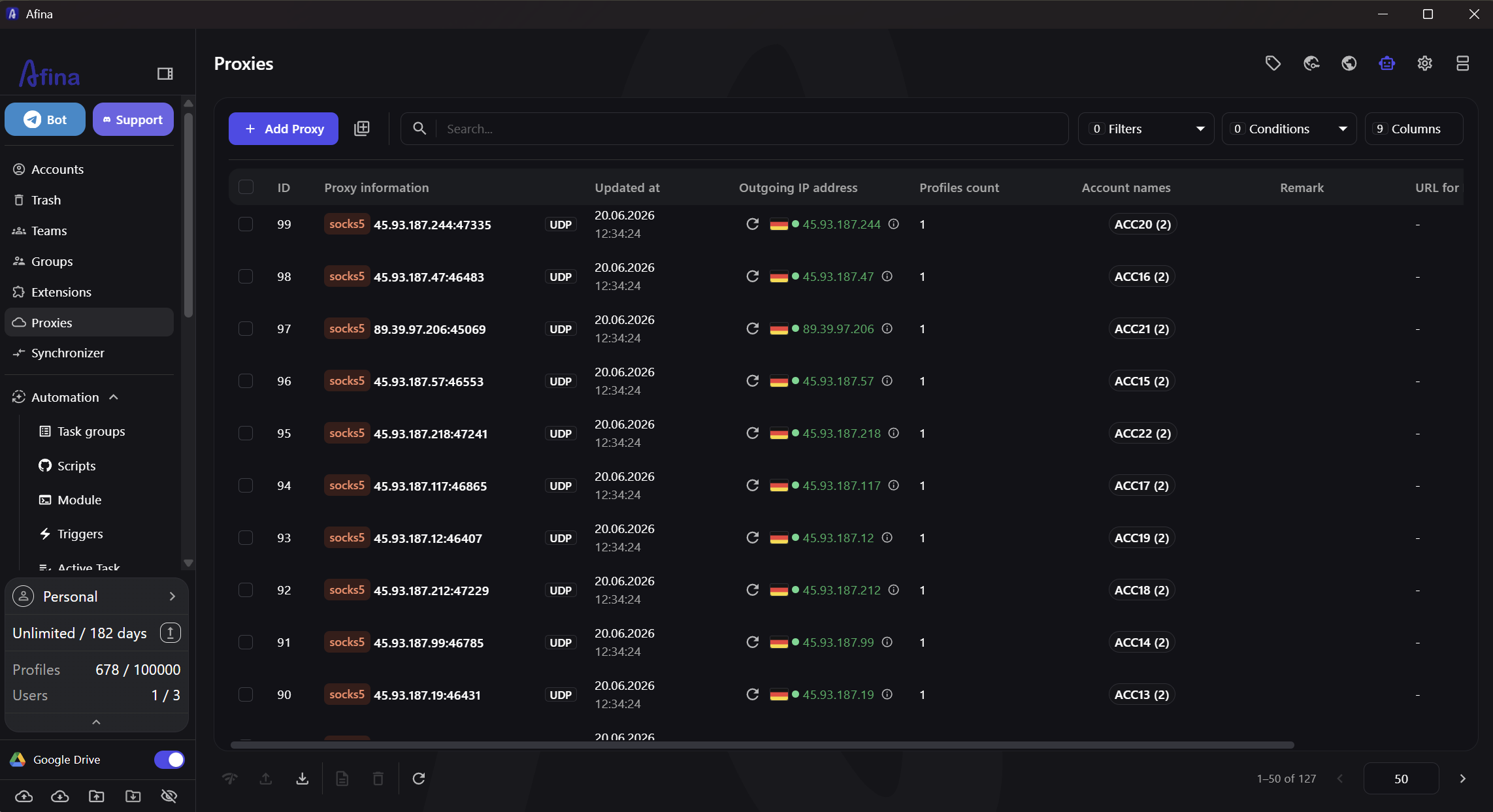
The Proxies section shows the protocol, host:port, outgoing IP address, country, and status. It also displays a UDP indicator for compatible SOCKS5 proxies. This lets you quickly see which endpoint is assigned to a profile without opening every account's settings.
After launching the profile, open a network checker. The visible IP should belong to Ace Proxies, and the country should match the selected endpoint. DNS must not reveal your real internet provider. When SOCKS5 with UDP is active, the Remote IP and WebRTC Public IP should match. The WebRTC and UDP check explains this risk in more detail.
If your workflow does not need WebRTC, disable it in Afina's additional settings. If you do need it, keeping the toggle enabled is not enough. The SOCKS5 endpoint must actually support UDP tunneling.
Why a proxy check may fail
The most common cause is straightforward: an incorrect host, port, username, password, or protocol. Also confirm that you are using IPv4, the Ace Proxies plan is active, and traffic is still available. With whitelist authentication, the list must contain the device's current public IP.
If the details are correct but the check still times out, switch the checking service in Afina from ip-api.com to ipinfo.io, or the other way around. It is also better to disable VPN extensions inside the profile. An extension can override the assigned proxy and expose a different address. And do not expect UDP features from HTTP or HTTPS: they are only available through a SOCKS5 endpoint with real UDP support. Use proxies and isolated profiles for lawful tasks and follow the rules of the websites you work with.
Promo code for new users:
FAQ
How do I set up a proxy in an antidetect browser?
Open the profile's Proxy tab. Select the protocol, enter the host, port, and authentication details, run the check, and save the settings.
Which type of proxy is best for Afina Browser?
Use a static proxy or sticky session for a long authenticated session. Rotation works better for independent requests that do not need to retain a login.
Do I need a separate proxy for each profile?
Separate unrelated work accounts with one stable endpoint per profile. This reduces overlap between IP signals and makes connection problems easier to trace.
Can I use IP whitelisting instead of a username and password?
Yes. Add the device's current public IP to the whitelist in Ace Proxies, and update the list whenever that address changes.
Why does the proxy check show an error??
Check the IPv4 address, host, port, protocol, credentials, whitelist, and plan status. If the request times out, change the checking service in Afina settings.